Connecting to simulator software
The Element sends every shot straight to the simulator software on your computer. To do that it needs to know which computer to send to — you tell it once in Settings, and from then on it connects by itself.
Setup is the same for every simulator. Work through the steps below, then check the section for your simulator for anything specific to it.
Before you start
- Your simulator software installed on your computer.
- The computer and the Element on the same network. If you can open http://sgt.local from the computer, you're set.
Step 1 — Tell the Element which computer to use
- Open http://sgt.local and go to
Settings. - Under
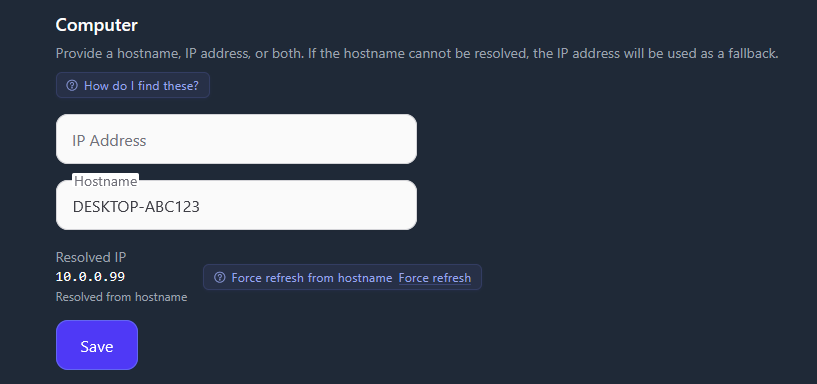
Computer, find your computer's hostname. ClickHow do I find these?for the steps, or on a Windows PC:- Press
Win + R, typecmd, and press Enter. - Type
hostnameand press Enter. The line it prints — something likeDESKTOP-ABC123— is your hostname.
- Press
- Type it into the
Hostnamebox and clickSave.
A Resolved IP line appears below the boxes with the note Resolved from hostname. That means the Element has found your computer.
Hostname or IP address?
You can fill in either, or both. The hostname is the better choice: your computer's IP address can change when it or your router restarts, and the hostname keeps working when it does.
If you also fill in IP Address (found with ipconfig in the same window — look for IPv4 Address), the Element uses it as a fallback whenever the hostname can't be found.
Step 2 — Connect to your simulator
- Go to
Connectionsin the menu. The page that opens is titled Connectors. - Find the row for your simulator. A green dot means it's connected, and the button beside it reads
Disconnect. - If the dot is grey, click
Connect.
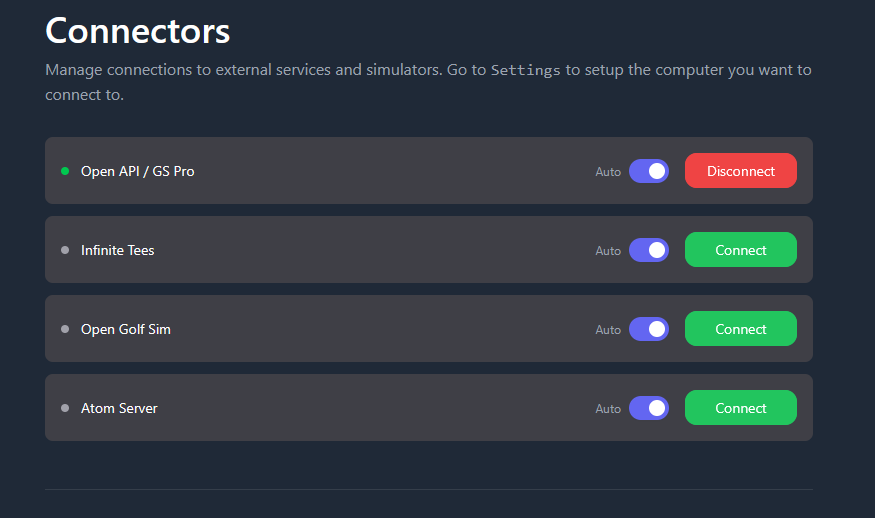
You can check at a glance from any page: the Connections icon in the menu is green while a connection is up, and red while none is.
After the first time
There's nothing to do each session. With Auto switched on for your simulator, the Element reconnects to it by itself — you don't need to open the dashboard before you play.
You only need the connector for the simulator you use. Leave the others as they are; you don't need to switch them off.
GS Pro
Use the Open API / GS Pro connector.
You need an Open API license
GS Pro only accepts shots from the Element with an Open API license. Check which license you have before you start.
Infinite Tees
Use the Infinite Tees connector.
TODO: Show how to set up Infinite Tees.
Open Golf Sim
Use the Open Golf Sim connector.
TODO: Show how to set up Open Golf Sim.
If it won't connect
The Resolved IP note is red and says the hostname did not resolve. The Element couldn't find your computer by name. Check the hostname for typos, then click Force refresh. If it still won't resolve, fill in IP Address as well and click Save — the Element will use that instead.
No Resolved IP line appears at all. Make sure you clicked Save, and that the computer and the Element are on the same network — see Connect.
Everything looks right but the dot stays grey. Make sure the Element is up to date: go to Settings and look under Updates. If a new version is available, click Update.
Still stuck? See Troubleshooting, or ask on Discord.